
- Project structure
- Database schema
- Fixed list fields
- Debugging ResourceSpace
- Writing your own plugins
- Context help links
- Custom fields ("user" defined)
- Query caching
- All user permissions
- Client side API calls
- Modals
- Sending user notifications
- Progressive Web App
- Managing (PHP) code dependencies
- Managing (JS) code dependencies
- OpenAPI documentation
- Automated Testing
- Table: activity_log
- Table: annotation
- Table: annotation_node
- Table: api_log
- Table: collection
- Table: collection_keyword
- Table: collection_log
- Table: collection_resource
- Table: collection_savedsearch
- Table: comment
- Table: daily_stat
- Table: dash_tile
- Table: dynamic_tree_node
- Table: external_access_keys
- Table: filter
- Table: filter_rule
- Table: filter_rule_node
- Table: ip_lockout
- Table: job_queue
- Table: keyword
- Table: keyword_related
- Table: mail_log
- Table: message
- Table: node
- Table: node_keyword
- Table: plugins
- Table: preview_size
- Table: report
- Table: report_periodic_emails
- Table: report_periodic_emails_unsubscribe
- Table: request
- Table: research_request
- Table: resource
- Table: resource_alt_files
- Table: resource_custom_access
- Table: resource_dimensions
- Table: resource_keyword
- Table: resource_log
- Table: resource_node
- Table: resource_related
- Table: resource_type
- Table: resource_type_field
- Table: resource_type_field_resource_type
- Table: search_log
- Table: site_text
- Table: slideshow
- Table: sysvars
- Table: tab
- Table: user
- Table: user_collection
- Table: user_dash_tile
- Table: user_message
- Table: user_preferences
- Table: user_rating
- Table: user_report
- Table: user_userlist
- Table: usergroup
- Table: usergroup_collection
- Table: usergroup_dash_tile
Progressive Web App
ResourceSpace can be installed as a Progressive Web App. This is achieved with the manifest.json file in the root of the ResourceSpace code.
The manifest.json file currently sets the application name, app icons, UI colours, shortcuts and screenshots for the web application.
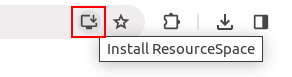
To install ResourceSpace on a desktop browser click the button "Install ResourceSpace" in your address bar:
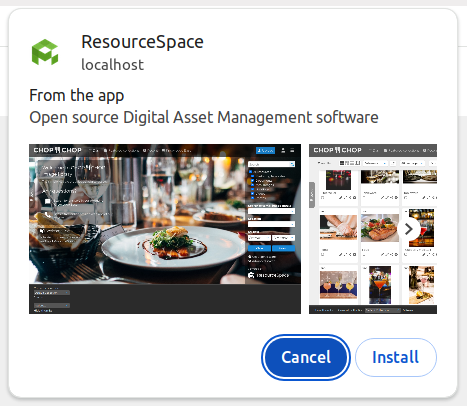
Then click "Install" to install the application.
By default the manifest.json file will use the root of your domain as the URL of your application - for example https://my-assets.com. If your ResourceSpace site is in a subdirectory of your domain - e.g. https://my-assets.com/resourcespace then the manifest.json file will need updating so that all URLs and the ID refer to this.
Visit https://web.dev/articles/add-manifest to see how the manifest can be further customised.
Changing the location of the manifest file
If you wish to place the web app manifest file in a different location you can change the $web_app_manifest_location config option.
By default it is set to "/manifest.json" - if you wish to place a new manifest file in your filestore folder you can set it to "/filestore/manifest.json".