
Sharing upload links
External upload shares
Users can create upload links to allow external contributors to upload files into ResourceSpace without needing an account.
Each upload link is connected to a specific collection, making it easy to organise and review the uploaded files.
Required permissions
To create a new external upload share, users need to have either the 'a' permission (super admins) or the 'exup' permission.
Creating an upload share
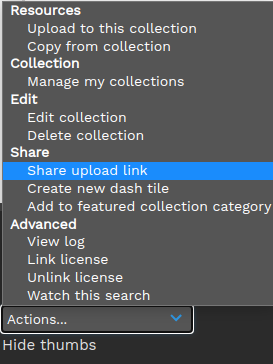
When uploading to a collection, click on the ‘Share upload link’ option from the upload page. Alternatively, select or create the collection you'd like to use, and choose ‘Share upload link’ from the 'Actions' menu in the collection bar.
Please note that you cannot create external upload links for collections that have already been shared externally for view access

Setting share options
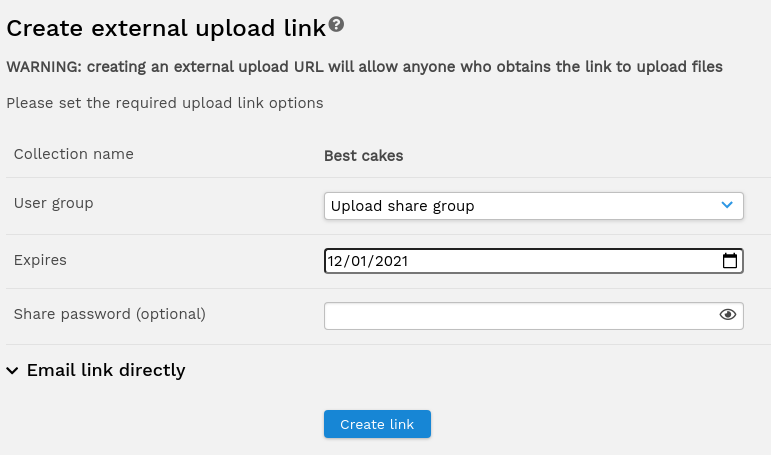
Configure the share using these options:
| User group |
Set a user group for the share to determine metadata field and resource type access. It's recommended that super admins create one or more dedicated groups specifically for external shares (the $upload_link_usergroups setting in the configuration). Dedicated metadata fields can also be created for this group in order to get extra information from the contributor. To prevent other user groups from viewing or editing these fields, you can make use of the 'f-xx' and 'Fxx' permissions (where xx is the metadata field reference) |
| Expires | Add an expiry date for the upload link if you'd like one |
| Share password | An optional share password that the recipient will need to access the upload share. From version 10.4, system config. $share_password_required can be used to make setting a share password required when creating new shares or editing existing shares. |
Accessing external shares
Users accessing an external upload share will first be prompted for the share password (if set) before being taken directly to the file upload page.
Once the files have been uploaded, the user will be prompted to set metadata for the new resources. When this has been completed, they'll see a message indicating that the upload is complete, along with a link to upload more files.
Once each batch of files has been uploaded and metadata set, the creator of the link will receive a system notification to advise them that resources have been contributed.
Managing external shares
You can manage your external shares by clicking on the user menu and selecting 'My shares'.
(Version 10.2+) Terms and Conditions for external upload shares
To add terms to external shares, set $terms_upload=true in the system config.
The content for these terms is set in the language string "terms__upload_terms"
When terms are enabled, users will need to accept them before uploading resources. Once accepted, they'll be marked as such for up to 24 hours in the same session.
Resources created this way will have "Accepted terms" in the resource log entry for the resource creation.