
Resource tools
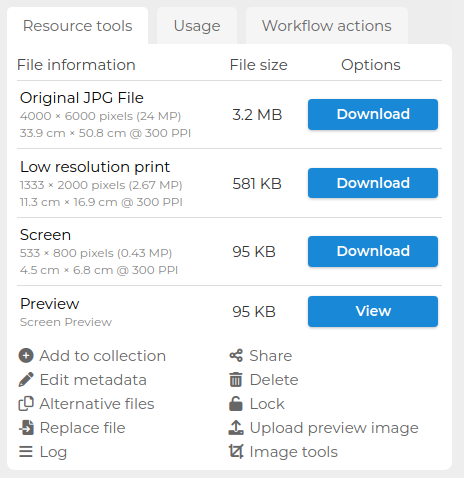
The Resource tools area of the resource view page allows you to download, view and request resource files as well as perform various actions such as adding to a collection or sharing.
Resource downloads
- Download
This allows you to download the file. Depending on your system configuration and user permissions there may be a number of download options to provide different sizes and formats for the resource.
Direct download is always available, unless the system is set for users to accept terms or specify how they'll be using their downloaded resource. - View
Shows a preview of the image in full screen. This can be displayed as either a lightbox modal, which opens on the current page, or a new page which allows you to view the image on its own. - View in browser
PDF and MP3 File types have the option to view the original file directly in your web browser. This also extends to alternative files. File types are deliberately limited here, as there are security risks with displaying many file types in the browser (e.g. malicious SVG files).
Resource actions
- Add to collection
Adds the resource to your current selected collection (open in the bottom collection bar) - Share
Allows sharing of the resource with other users. See Sharing resources for more information - Edit metadata
Takes you to the resource editing page which provides resource modification and manipulation options. See Editing resources for more information - Download metadata
This allows you to download just the metadata for this file - as a text file with colon separated key value pairs. Requires the $metadata_download config option to be enabled - Delete
Moves the resource from the Active to the Deleted state. Once in the Deleted state, the resource remains accessible to users with permission to access Deleted resources (usually Admins). Admins can revert this, moving the resource back to the Active state. Once a resource is in the Deleted state, the option to Delete permanently becomes available; the resource will then be irretrievably removed from the system - Alternative files
ResourceSpace is able to store multiple versions of a file as alternatives to the original resource. Different sizes or editions of videos or images can be stored as alternatives to give users more flexibility when working with resources. Use this option to manage those alternative files. See Alternative files for more information - Lock/unlock
Locking a resource prevents other users from editing it. Administrators can remove this lock if necessary. See Resource locking for more information - Replace file
Replace the original file for this resource by uploading a new one. This feature requires edit access and the 'c' or 'd' permission. See also: All user permissions - Upload preview image
Upload a new image to use for previewing the resource. The original file is unaffected. Files must be in JPG format - Log
ResourceSpace keeps a log of resource activity such as edits, shares or downloads. Where these actions have been made there is a timestamp and record of the user who took the action. See also: Version control - Image tools
This tool is powered by the Transform plugin; a base plugin within ResourceSpace. This allows an image to be cropped to show a selected area only. Custom derivative crop sizes can be applied. New derivatives can then be downloaded or saved as alternative files.