
User options
Contributing
Searching
Working with resources
- Resource tools
- Alternative files
- Editing resources
- Editing multiple resources
- Editing resource previews
- Resource status & access
- Sharing resources
- Deleting resources
- Related resources
- Version control
- Lockable metadata
- Geolocation
- CSV export
- Metadata report
- Resource commenting
- User rating of resources
- Usage history
- Resource locking
- Downloading multiple resources
- Image preview zoom
- Subtitles for Video Preview
- Annotating resources
Working with collections
Advanced user guides
Homepage dash
Messages, emails and actions
Browsing
Editing resource previews
Resource previews will be the first contact users will have with your media, and so play an important role in how they'll decide which assets to use. Sometimes, with large videos or multimedia, it can take a while for previews to be generated so be patient for them to appear*.
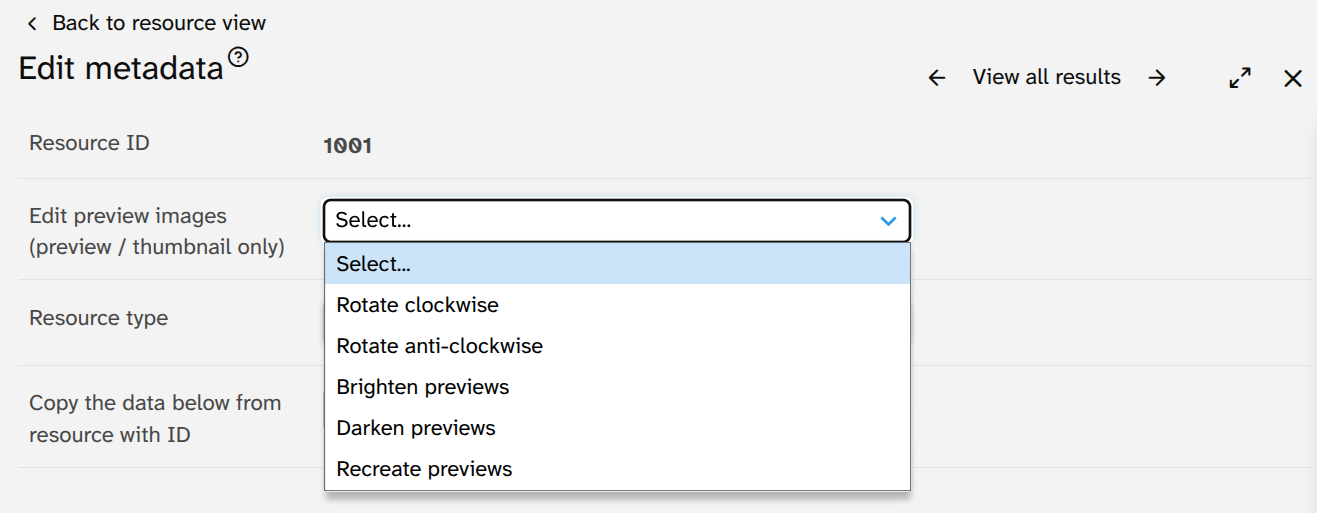
Several editing options for previews are available from a drop down menu on the Edit metadata page:
- Upload a preview image only - If you want to use a preview image which is different to the default, for example an image to describe a text file, you can upload one to replace the existing preview. If you later need to remove this preview image, the Recreate previews option will undo the change.
- Rotation - If your original image shows at the wrong orientation i.e Landscape instead of Portrait or vice versa, you can rotate the preview so that it will display correctly. This won't change the orientation of the original files: to do this, you can use the Transform plugin or download and re-upload the original image after you've rotated it externally.
- Image brightness If your preview display is too dark or too light as a result of the jpg formatting, you can adjust the brightness of the preview to make it clearer. This will not affect the original image.
- Recreation - You can also trigger previews to be re-generated. This can also revert the changes made by the 'Upload a preview image only' option.
* Offline generation
It's recommended that super admins enable the offline job queue so users uploading files don't have to wait while previews and alternative files are created. From ResourceSpace 11.0, offline previews are enabled by default.