
- Resource tools
- Alternative files
- Editing resources
- Editing multiple resources
- Editing resource previews
- Resource status & access
- Sharing resources
- Deleting resources
- Related resources
- Version control
- Lockable metadata
- Geolocation
- CSV export
- Metadata report
- Resource commenting
- User rating of resources
- Usage history
- Resource locking
- Downloading multiple resources
- Image preview zoom
- Subtitles for Video Preview
- Annotating resources
Version control
Each resource has its own 'Log', which is displayed in the Resource tools area. Full version control functions are available from the log. Clicking a log entry will bring up a page showing the full details and, where relevant, a 'Revert' link will be displayed. This allows you to undo each edit made to the resource metadata individually. You can also revert an upload if a file has previously been replaced.
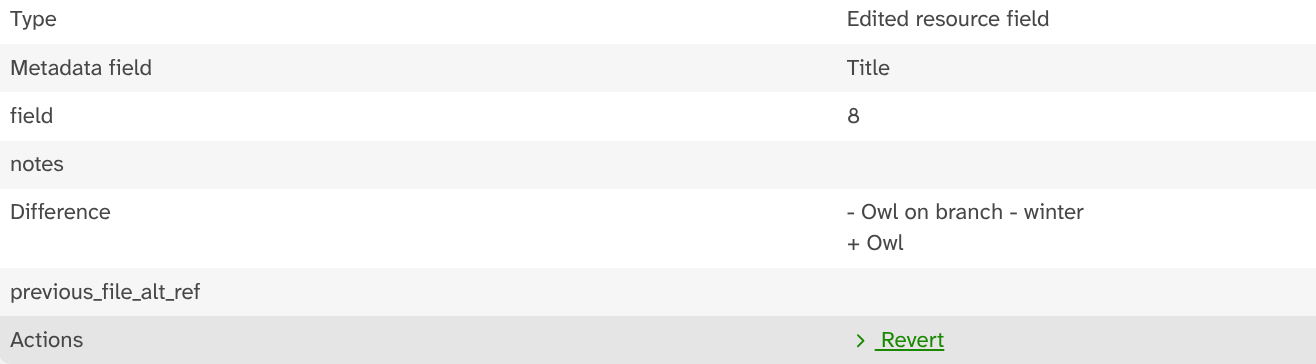
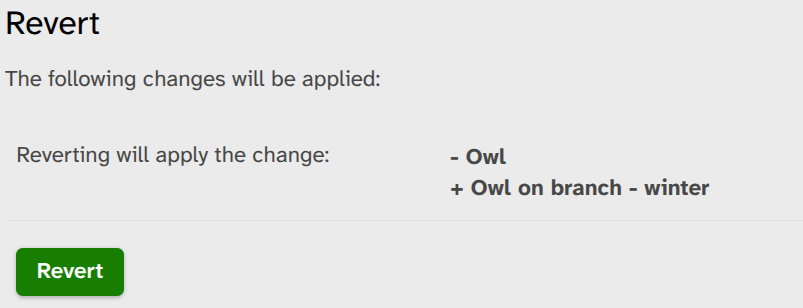
Where the log entry refers to a metadata edit, reverting will reinstate the previous value stored for this field. A confirmation page details the proposed change. A '+' prefix shows which metadata will be added as part of the reversion, and a '-' prefix shows which metadata will be removed.
Where the log entry refers to a file replacement upload, the revert action will restore the previous file to the record. Again, a confirmation page will give you the option to preview the change before you commit to it.
Batch revert
It's also possible to restore the contents of a metadata field for all resources within a collection. Simply select the field you'd like to change on the 'Edit all resources' page, and choose the option to 'Revert to state as of date/time'. Enter the date and time you'd like to go back to for your chosen field as required. The batch operation will then restore the contents of that field to how it was at the specified time.
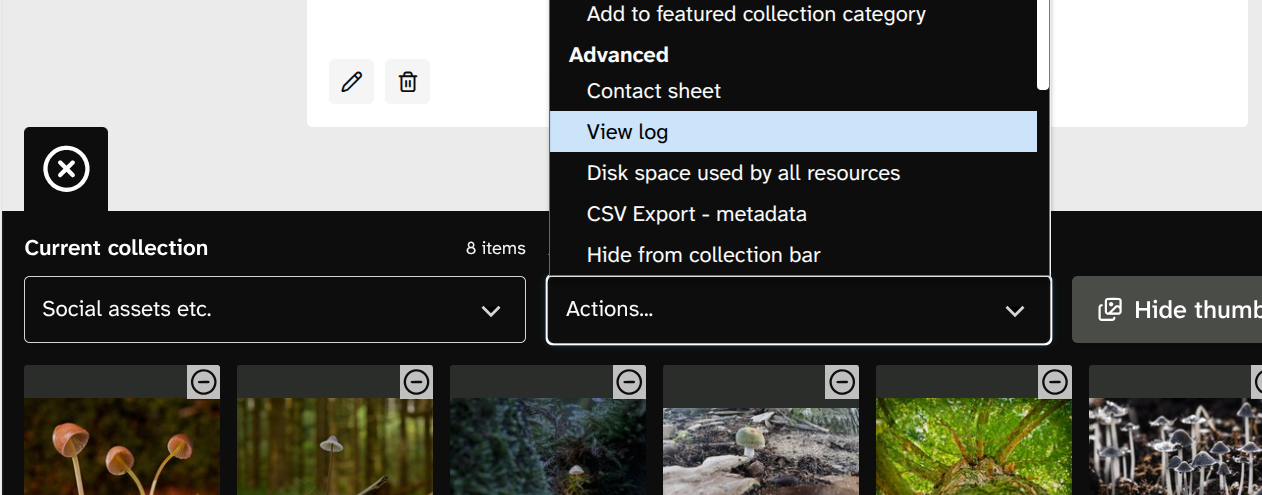
You can use this option to revert back to an earlier archive state for an entire collection of resources too. Collections also have their own logs: from any collection go to Actions > View log to access the collection log.
Reverting a revert
Note that reversion operations themselves (both single and batch) are edit actions, so will also appear in the logs and can be reverted if needed too.