
Integrate with Canva
ResourceSpace’s Canva integration allows you to search your ResourceSpace system and browse collections within Canva. Files can be selected and placed into your Canva project and the project saved back into ResourceSpace when it’s complete.
Resources containing an original file of one of the following mime types can be accessed using the integration:
-
- image/jpeg
- image/png
- image/svg+xml
- image/webp
- image/heic
The ResourceSpace app is installed on your Canva account and here are the steps to get started:
-
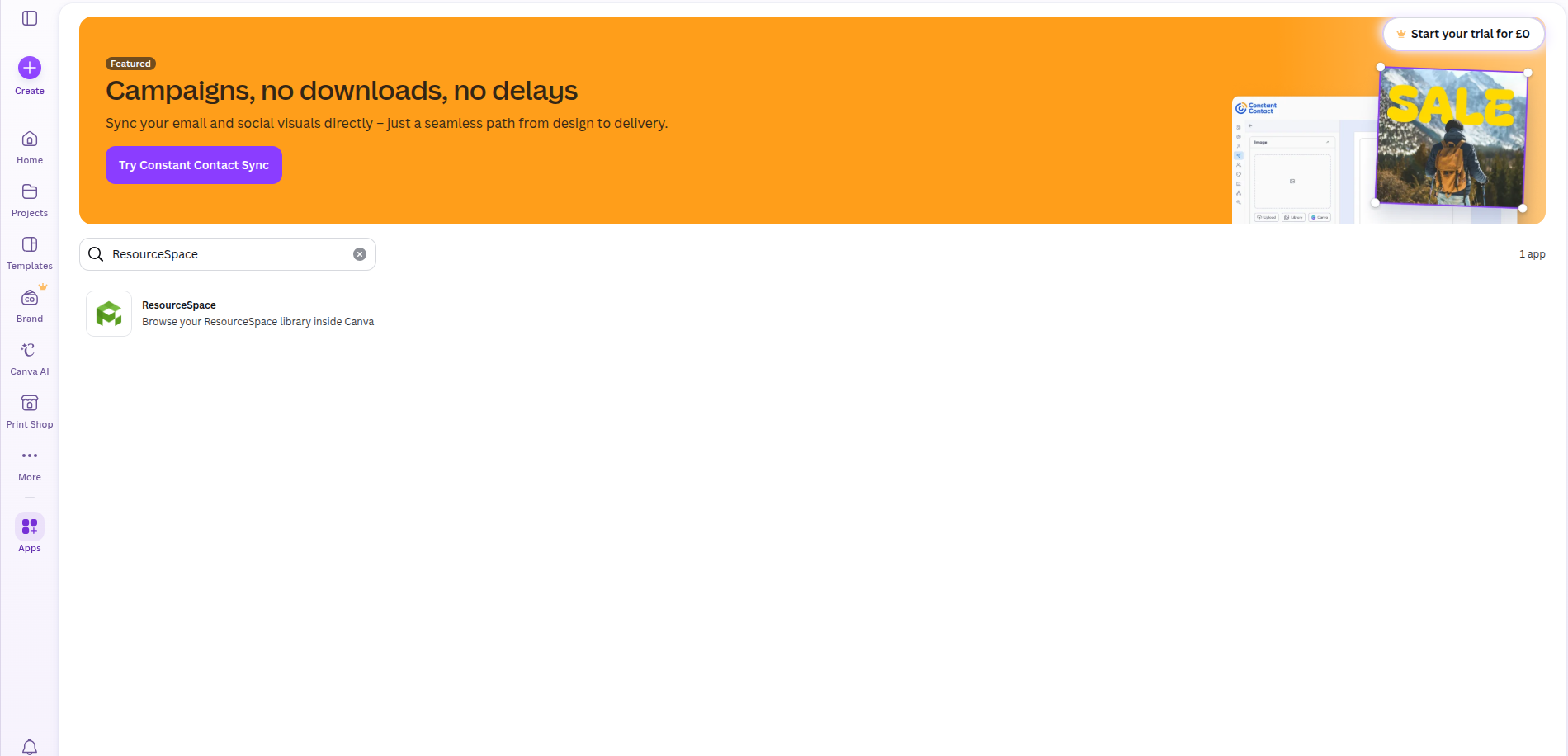
Search for ‘ResourceSpace’ under ‘Apps’ in Canva.
-
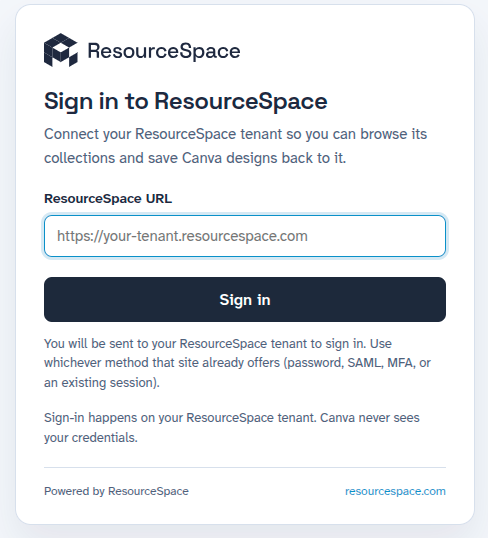
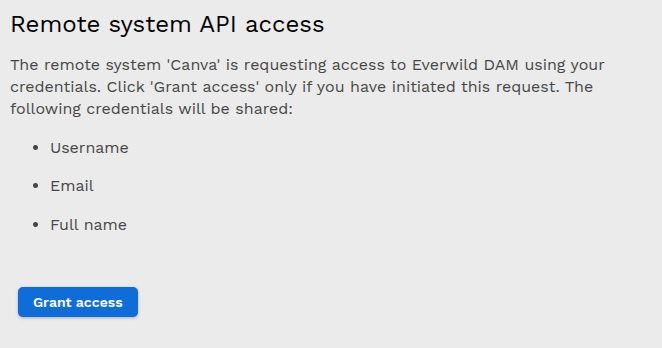
Connect the Canva app to your ResourceSpace system by entering your system URL. If you're using single sign-on you'll need to click 'Grant access', otherwise, just enter your username and password.
-
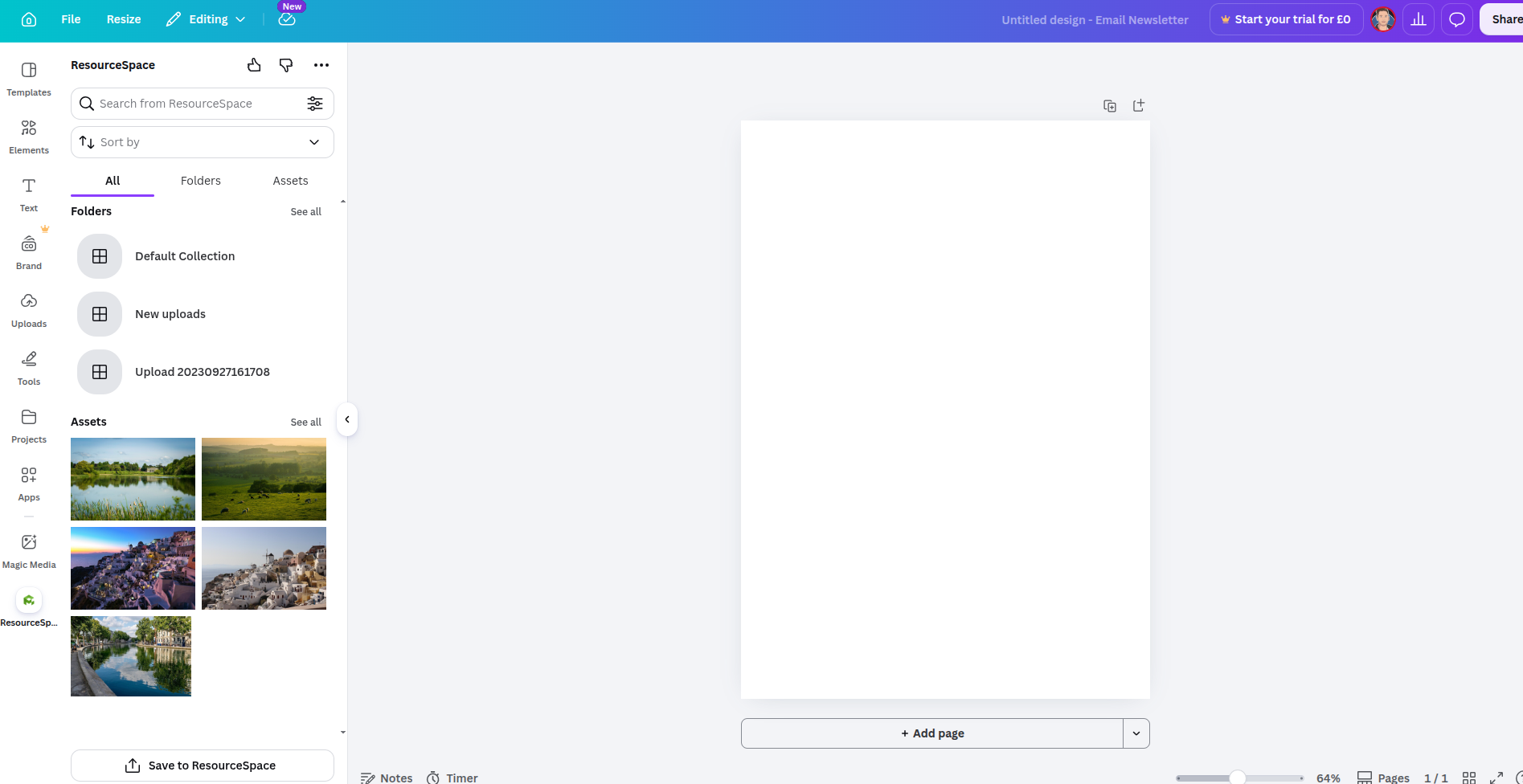
You can now search your ResourceSpace system and browse your (private) collections.
-
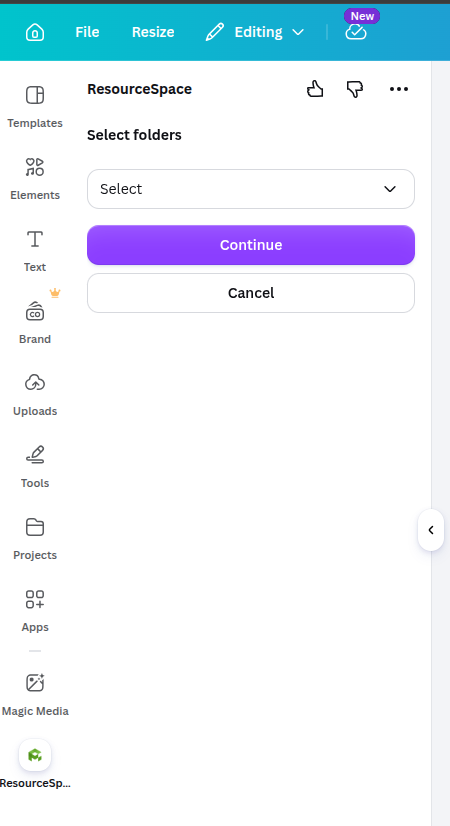
You can drag and drop assets into your project and, once you've completed the project, you can save it back to ResourceSpace if you’d like to. You can choose the collection you’d like to save it to and it’ll appear under the ‘Recent’ tab as well.

Tips and troubleshooting
In Canva, the ResourceSpace app displays "You haven't added any content yet!" when searching or loading a collection. Check that your search or collection includes resources containing original files of mime types listed at the top of this page. Not all file types can be displayed via the integration. "You haven't added any content yet!" could indicate all of the content was not of valid mime types e.g. all videos or documents rather than images.